After our post regarding Amazing PC / Internet Tricks, we thought of having a similar post for our Mac users. We posted a blog regarding cool iPhone tricks, that was followed by the post onmust have apps for iPhone. Finally here are some cool tricks for Macintosh. Before moving to the tricks here is a list of some of the keys that we will be using for some of our tricks.
Command ⌘ Shift ⇧ Option ⌥ Control ⌃ Caps Lock ⇪ Fn
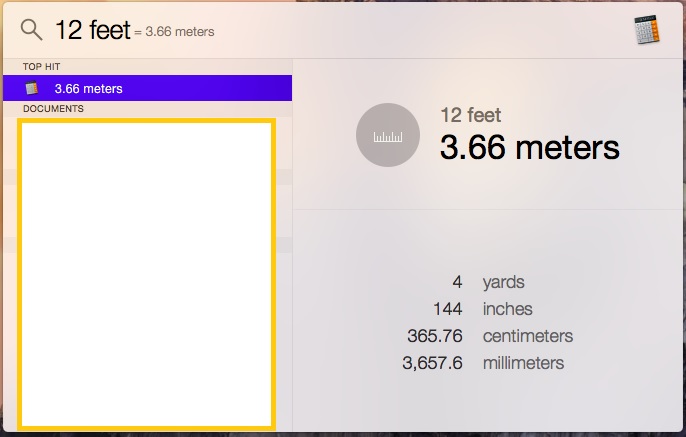
I. Unit Conversion Through Spotlight
Simply type INR 66.76 in spotlight and it will suggest the conversion factor for some of the common currencies. Same is the case with other unit of measurement. Try for 1 meter, 1 kilogram, etc.
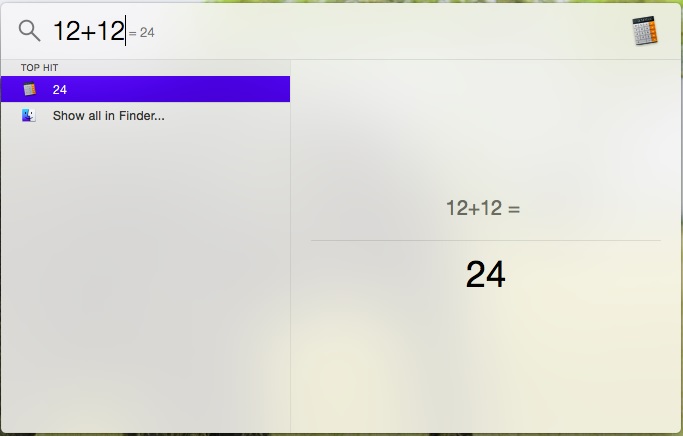
2. Spotlight As Calculator
Do I need to explain it.
3. No Need To Remember The Address Of Every Program And App
Simply use Spotlight for opening anything and everything. So in this tutorial when we ask you to open any program or app simply open Spotlight, type the name of that program and open it. You don’t need to remember the exact place where that app or settings is located.
4. Listen To Your Text
Select the text> ‘Edit’ Tab > Speech > Start Speaking
5. Renaming A Group Of Files At Once
Select the group of files > Right click > Rename
6. Use Emoji Keyboard
While typing if you wish to use Emoji Keyboard, then press ‘command + control + space’ to activate emoji keyboard
7. Invert Screen Color For Night Usage
During night time to reduce the glare and still use your MacBook press ‘control + option + command + 8’
8. To Delete The Files
Press ‘command + delete’
9. To Type A Special Character
Press ‘option + E’ and then press whatever key has a special character attached to it.
10. Record Your Screen
Open Quicktime > ‘File’ Tab > New Screen Recording > Select ‘Record’ > Select an area of your screen or the entire screen > When you are done then click the stop icon
11. Share Specific Text
Select the text > right click and click share
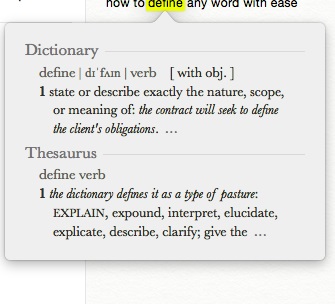
12. Use The Dictionary For Definition Of Any Word
Method 1: Hover the mouse over any word. Press ‘command + control + D’ for the pop up dictionary.
Method 2: Hover over the word and press ‘control’ > Click ‘Look up’
Method 3: Hover over the word and tap the keypad with three fingers at once
13. Use ‘Delete’ Button The Windows Way
The ‘Delete’ button works like the ‘Backspace’ key of the windows keyboard. To delete the text from left to right press ‘fn + delete’.
14. Start The Mac Silently
Press the Power button + F10 + HOLD
15. Add Signatures To Forms
Sign on a piece of paper. Open Preview > ‘Help’ tab > Type ‘Signature’ > ‘Manage Signature’. The camera will start. Keep the piece of paper in front of your camera. Preview will detect your signature. Select ‘Accept’ or ‘Done’.
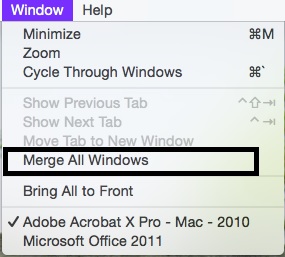
16. Merge Various Finder Windows
Select any Finder windows > ‘Window’ tab> Merge All Windows >Enjoy the tabbed experience
17. Change Volume Silently
Use Shift + F12. In the later versions of OS X, use this option to hear the sound going up and down as in the later OS X versions the silent option is the default option.
18. Stop The Notifications
System Preferences > Notifications > Specify your option in the ‘Do Not Disturb’ section. You can even exclude certain apps from the notification.
19. Quickly See The Desktop
Place your thumb and three fingers on the trackpad. Now move your three fingers away from the thumb. If it does not work then maybe you need to enable three finger track pad.
20. Enable Three Finger Trackpad
System Preference > Trackpad > Mark Check on check-box for ‘Three Finger drag’
21. Change The Screen Light By 1/4th Unit
Simply pressing the screen light button will change the screen light by one unit at a time. Press ‘option + shfit + Screen light button’ to change it by 1/4th unit at a time.
22. Multiple Desktop
Open Mission Control. Hover your mouse to the top right corner. Click on the plus sign and create another desktop. Use different desktops for different jobs. One for games, one for office work, one for social networking.
23. Setup Hot Corners
System Preferences > Mission Control > Click on the Hot Corners… > Set up different options for different corners. I have set up mission control in the right hand bottom corner. So for tip number 22, I just hover my mouse to the bottom right corner and take it to top right corner and Voila!
24. Change Pattern In ITunes
While listening to a song in iTunes press ‘command + T’ to change the pattern according to the beats of your song
25. Browse Between Open Windows
Use ‘Command + Tab’
26. Capture A Part Of The Screen
Use ‘command + shift + 4’ > Drag to take screenshot for a part of the screen. The image file will be saved on desktop by default.
27. Take Printscreen For The Whole Window
Use ‘command + shift + 3’. The image file will be saved on desktop by default.
28. Incremental Volume Change
Similar to the tip number 21 above, there is an option for incremental change in volume as well. Use ‘shift + option + Volume up or down’.
29. Quit An App
Use ‘command + Q’
30. Switch Between Various View Option In Finder
In Finder window use ‘command + 1’, ‘command + 2’, ‘command + 3’ and ‘command + 4’ for Icon, List, Column and Cover Flow view respectively.
Expand And Collapse A Folder Using Arrow Keys
31. Expand a folder in Finder in List View using right arrow
32. Collapse a folder in Finder in List View using Left arrow
33. To rename a folder of file hit Enter
34. To Open The Selected Folder
Double click or press ‘command + Down Arrow’. Similarly pressing ‘command + Up Arrow’ will take you to the parent folder.
35. Crop Image In Preview
Draw a selection with the regular Rectangular selection > Press ‘command + K’.
36. Save Password In ICloud Keychain To Access It Across Devices
37. Automator
Use Automator for building your own workflows of commands
38. Know Your Apple ID
Many a times, while in tech support or filling out a form in Apple official website, or for sharing your screen with someone else you will need to know your Apple Id. To know your Apple Id follow: System Preference > iCloud
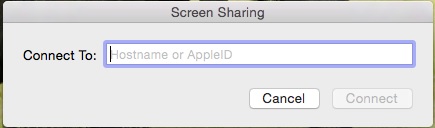
39. Screen Sharing In Mac
Spotlight > Search for Screen Sharing > Enter the Apple ID of the person you are trying to contact
40. Family Sharing Of Purchases
System Preference > iCloud > Family Sharing. For more details you can visit this link
42. Revert To Previous Version Of A Document
Open any document and hover your mouse over the name of the document. A black arrow sign will appear, once you click it, you will get a number of options including browsing the previous versions of the document.
43. Lock The File For Editing
Open any document and hover your mouse over the name of the document. A black arrow sign will appear, once you click it, you will get a number of options including to lock the document.
44. Switch Between Headphones And Speakers
If you have both headphones and speakers connected to your Mac, press option + volume up/down. A ‘System Preference’ window will open. In ‘Play sound effects through:’ select the output device that you wish as per your preference.
45. Stop Applications That Are Preventing Sleep Of Your Mac
Open Activity Monitor > View in Column Mode. You can find which apps are preventing the sleep mode.
46. Resize Column In Column View
Press option + Double click the column divider to resize all columns to fit the longest file name
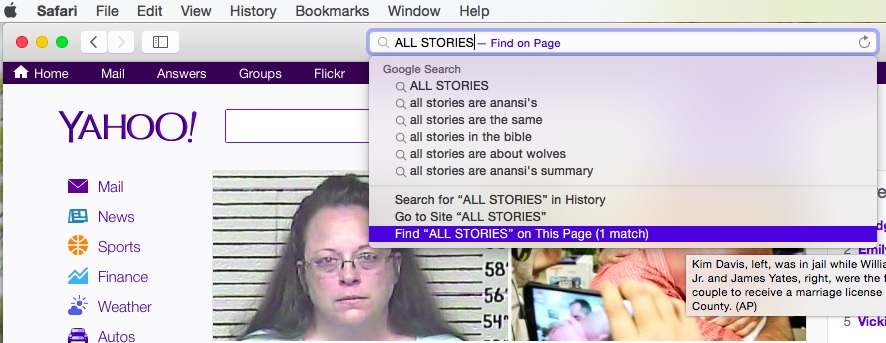
47. Search For A Text On A Page In Safari
If you have a webpage opened in Safari and you want to search for a specific text on that page. Simple go to the address and type that text. Now select the option for finding that text in that particular page.
48. Empty The Trash With Warning
Use command + shift + delete
49. Empty The Trash With No Warning
Use command + option + shift + delete
50. To cancel a drag and drop option while in the midst of a drag you can press ‘Esc’ key
51. Hide / Show The Sidebar On The Left
Press command + option + S
52. Hide/ Show The Toolbar On The Top
you can press command + option + T
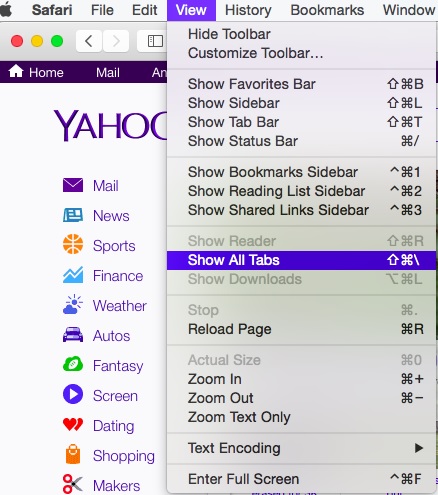
53. Close Tab In Safari Opened In Other Devices
Choose ‘Show All Tabs’ from the View menu and you will see all your open tabs on all your devices. The condition is that they should be using the same Apple ID.
54. Open Quick Look To Preview Most Types Of Files Without Actually Opening It
Press the Spacebar, alternatively you can use Command + Y
55. Press with three fingers on trackpad to open Quick look to preview most types of files
56. Hold Option while scrolling to zoom in or out in Quick Look for images and PDFs.
57. To undo renaming the last file you can press Command + Z. Pressing Command + Z undo most of the last actions like copy etc.
58. Create Printer Pool To Minimize Waiting Time
System Preferences > Print & Fax, select the printers and create a Printer Pool. So, if one printer is busy, the Mac will send the document to the next printer for printing
59. Restrict The Usage Of Mac
Open Spotlight by pressing command + Spacebar. Type ‘Parental Control’. Press ‘enter’. Select options for the time of day when it can be used.
60. Quickly Scan Through The Menu Of Any App
Click Help menu and type the option you are looking for. It will quickly show you the related list. Hover your mouse over the one you want and it will show the main menu item under which it is listed.
61. Play Around With Resizing And Open Window
Try these out.
A. Hold Option while resizing a window.
B. Hold Shift while resizing a window.
C. Hold both Option and Shift while resizing a window.
D. Now thank me here for the cool trick.
62. Drag Windows Without Disturbing The Front Window
You have two windows open, one at the foreground and other at the background. To move the background without bringing it to the front, press command and then move it.
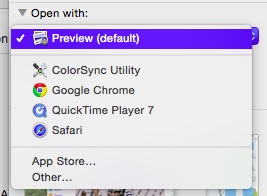
63. Change The Default App Associated With A File Type
Press Command + I > Open with > Choose new App > Click ‘Change All…’ to apply to all the files
64. Stop Background Applications To Load Automatically During Boot Up
Press Shift while the OS X is loading to stop background applications from opening up automatically. This process speeds up the logging process.
65. Automatically Open Certain Items On Startup
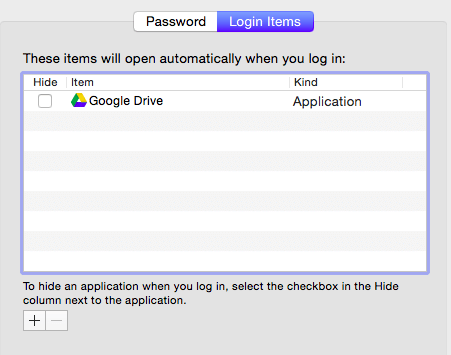
System Preferences > Users > Login items > Click the ‘+’ to add an application
66. Find The Culprit For Slow Mac
Go to Activity Monitor and check out CPU usage, memory usage and other such statistics
67. Move The Files
Press command + C to cut and then command + option + V to paste, simply pressing Command + V will copy paste the file
68. You can press Command + H to hide the front window, to hide all other windows except for the front window, press Command + Option + H
69. To close the front window of an app you can press Command + W, to press all the windows of an app you can press Command + Option + W
70. Define Frequency Of Removal Of Downloaded Items
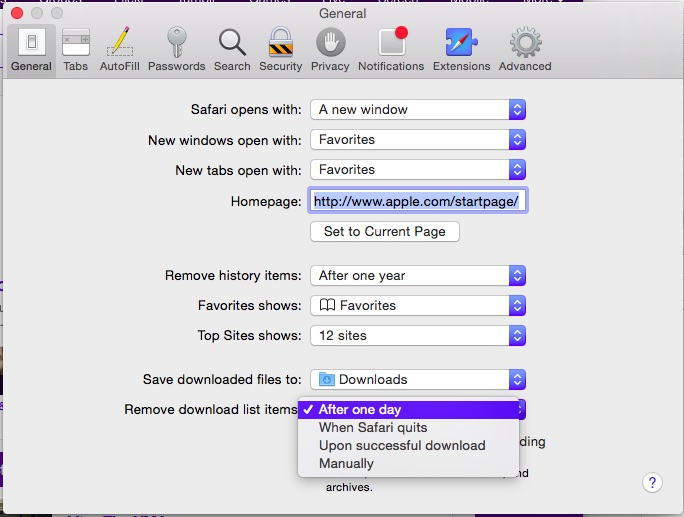
Open Safari > Preferences > General Tab > ‘Remove download list items:’ Here you can select the frequency with which the downloaded item list is removed from Safari browser.
71. Split View In Photos App For Mac OS X
Open Photos > Open any image in Photos app > Click on the Split view in the Photos App Toolbar > Enjoy viewing photos in a better way
72. Change Default Search Engine In Safari
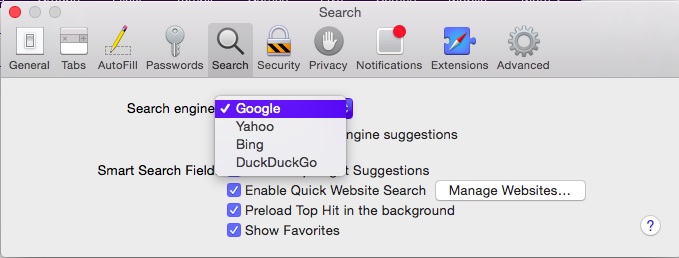
Open Safari > Preferences > Search Tab > Select the search engine you wish to use from the ‘Search engine’ drop down menu
73. Hide/ Show Your Dock
Press command + option +D to hide your Dock. Repeat this step to show the hidden dock. Go one step ahead and use this command to hide the Dock on your friend’s Mac. Watch his expression!
74. Press Command key. Hold it and press Tab key one by one to go through your open apps. If you need to close some app, just press Q. Press H to minimize or hide the app window.
75. Group Files Into A Folder Like A Boss
Select the files you wish to group, right click on any one of the files and select ‘New Folder With Selection’.
76. Insert Apple Symbol In Names Of Files/ Folders Or In Your Document
Press Option + Shift +K in your MacBook while renaming a file or while editing a text in any document. Later thank me here.
77. Stop Magnification In Dock
System Preferences > Dock > Magnification > Uncheck the box
78. Stationery Pad Options For Any File
For any document press ‘command + I’ to Open the in for that particular file. Click on the checkbox against ‘Stationery pad’. While saving a file choose the option of ‘Stationery pad’. Now anytime you open the file a duplicate file will be opened. This is very useful for documents that are used as templates and prevents you from accidently replacing the original file.
79. Change The Cursor Size To Grandma’s Preferred Size
System Preferences > Accessibility > Display pane > ‘Cursor size:’ > Change the cursor size using the scroll to a size your prefer.
80. Find Various Options In System Preferences In Different Versions Of OS X
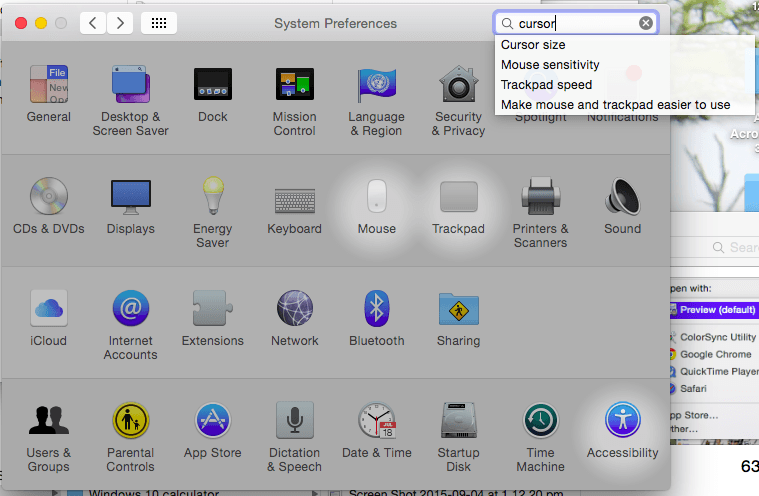
Apple release updates to the OS X. With these various options move from one section to other in the System Preferences. There might be a case where in this tutorial we have told you to go to a particular section in System Preferences and you can’t find it there. For example, in tip number 79, in previous versions of OS X, the option to change cursor size was System Preferences > Universal Access > Mouse & Trackpad. In the later versions of OS X, it has changed to System Preferences > Accessibility > Display pane > ‘Cursor size:’.
In such a case don’t worry. Simple open System Preferences using Spotlight. On the top right corner in the search box, type what you are looking for and you will be directed to the relevant section. Additionally the operation system will suggest some other similar related text.
81. Force Quit Troubling Application
Press command + option + Q to force quit the troubling app.
82. Open A Number Of Folders At Once
Suppose you have a number of folders inside one particular folder and you want to go through their content one by one. In List view, select all the folders by pressing ‘command + A’ and then press the right arrow key. A real time saver if you wish to scan through content of a number of folders.
83. To close all of the folders in this List View just do the procedure again repeatedly, only this time use the left arrow key to close the folders.
84. Select What Apps Appear In Your Spotlight Search
System Preferences > Spotlight > Search Results > Include or exclude apps that you wish Spotlight to access.
85. Exclude Certain Folders From Spotlight Search Results
If for some particular reasons, you wish to exclude certain folders from Spotlight search then, System Preferences > Spotlight > Privacy > Click on the ‘+’ sign at the bottom to add folders that you wish to exclude from your searvh in spotlight.
86. Change Alert Sound
System Preferences > Sound > ‘Sound Effects’ tab > ‘Select an alert sound:’